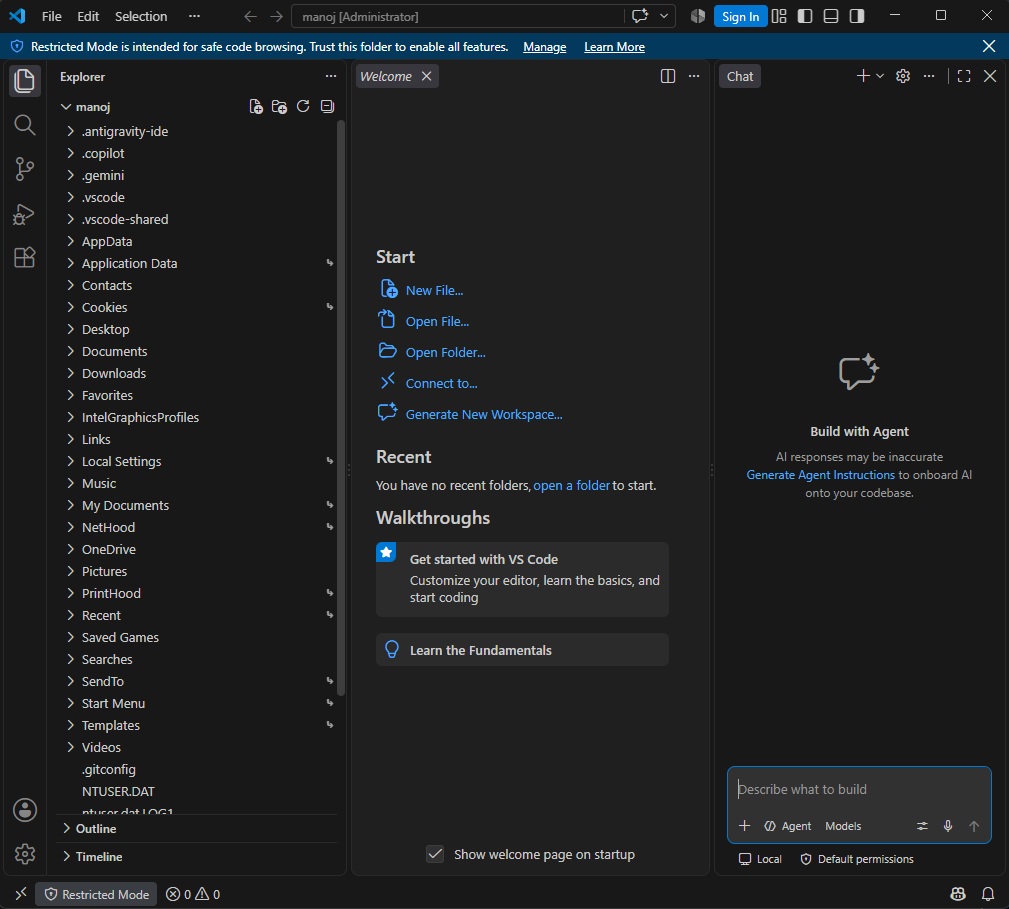
Welcome to Full Stack Web Development! Before we write HTML, CSS, and JavaScript, we need a modern code editor on our Windows 11 computer.
What is Visual Studio Code (VS Code)?
VS Code is a free code editor.Microsoft built it for web software engineering.Includes terminal, Git, and syntax highlighting.Extensions provide live server and formatting.Works natively across all Windows 11 computers.
Method 1: Download & Install via Command Line (CLI - Fastest)
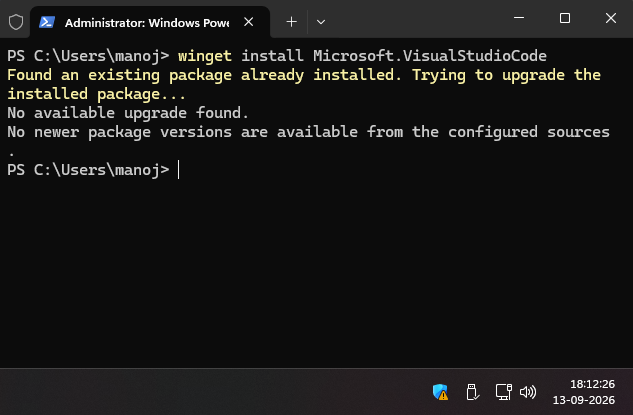
If you prefer Windows Terminal or PowerShell, you can install VS Code with a single command using the official Microsoft Windows Package Manager (winget).
Open Windows Terminal using Win + X.Run official Windows Package Manager command.Download and PATH configuration happen automatically.Verify your installation with version command.Open any directory using code dot.⊞Administrator: Windows 11 Command Prompt (cmd.exe)
>winget install Microsoft.VisualStudioCode
⊞Windows 11 Execution OutputReal PC Match
Microsoft Windows [Version 10.0.22631.3007] (Windows 11 Pro x86_64)
(c) Microsoft Corporation. All rights reserved.
Found Visual Studio Code [Microsoft.VisualStudioCode] Version 1.93.0
This application is licensed to you by its owner.
Downloading https://update.code.visualstudio.com/1.93.0/win32-x64-user/stable...
██████████████████████████████ 98.4 MB / 98.4 MB
Successfully verified installer hash
Starting package install...
Successfully installed Visual Studio Code!
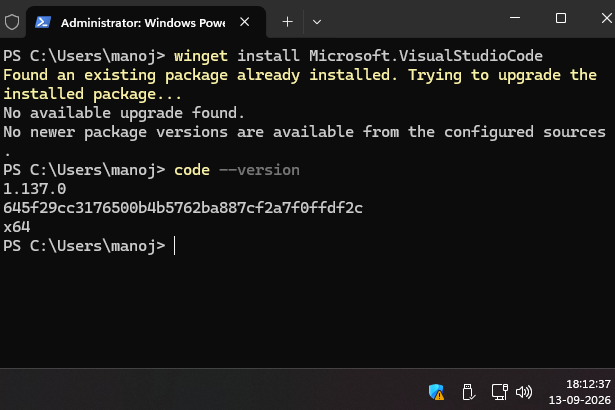
Verify your installation by checking the installed version:
⊞Administrator: Windows 11 Command Prompt (cmd.exe)
⊞Windows 11 Execution OutputReal PC Match
Microsoft Windows [Version 10.0.22631.3007] (Windows 11 Pro x86_64)
(c) Microsoft Corporation. All rights reserved.
1.93.0
38c31bc77e0dd6ae88a4e9cc93428cc27a56ba40
x64
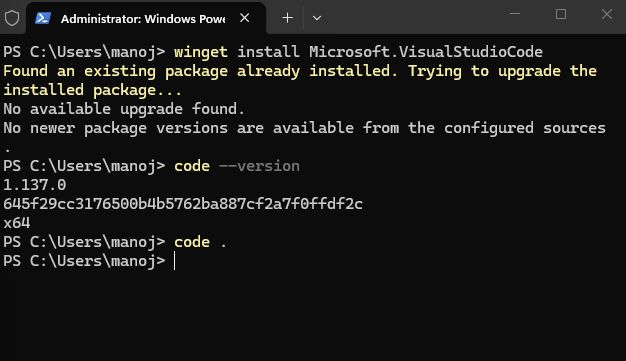
Launch VS Code directly into your workspace from the command line:
⊞Administrator: Windows 11 Command Prompt (cmd.exe)
⊞Windows 11 Execution OutputReal PC Match
Microsoft Windows [Version 10.0.22631.3007] (Windows 11 Pro x86_64)
(c) Microsoft Corporation. All rights reserved.
C:\Users\Student\my-first-website> code .
Opening current directory in Visual Studio Code... Workspace loaded!
Method 2: Direct Download from Official Website (Setup Wizard)
Step 1: Open Google Chrome and Visit Official Site
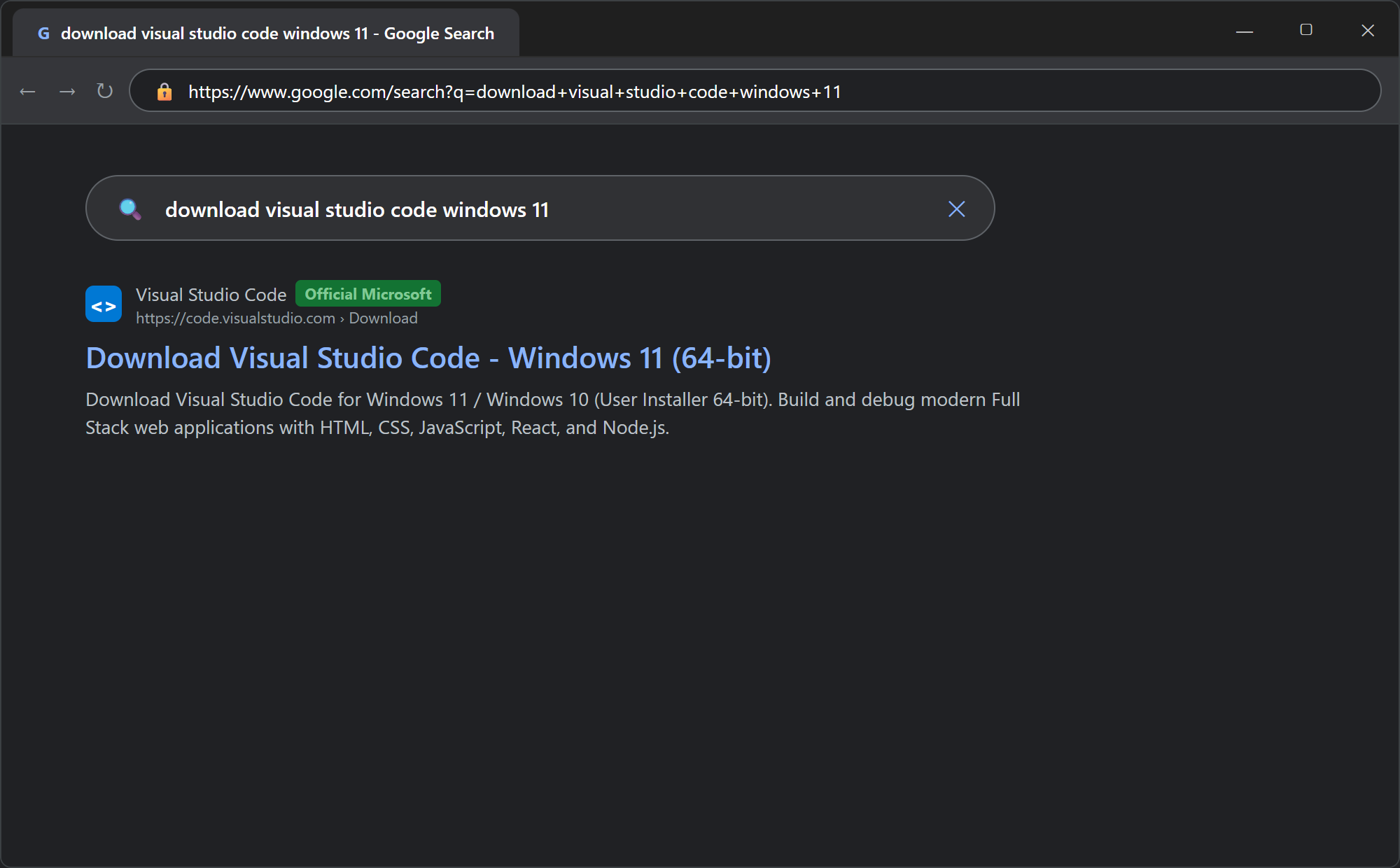
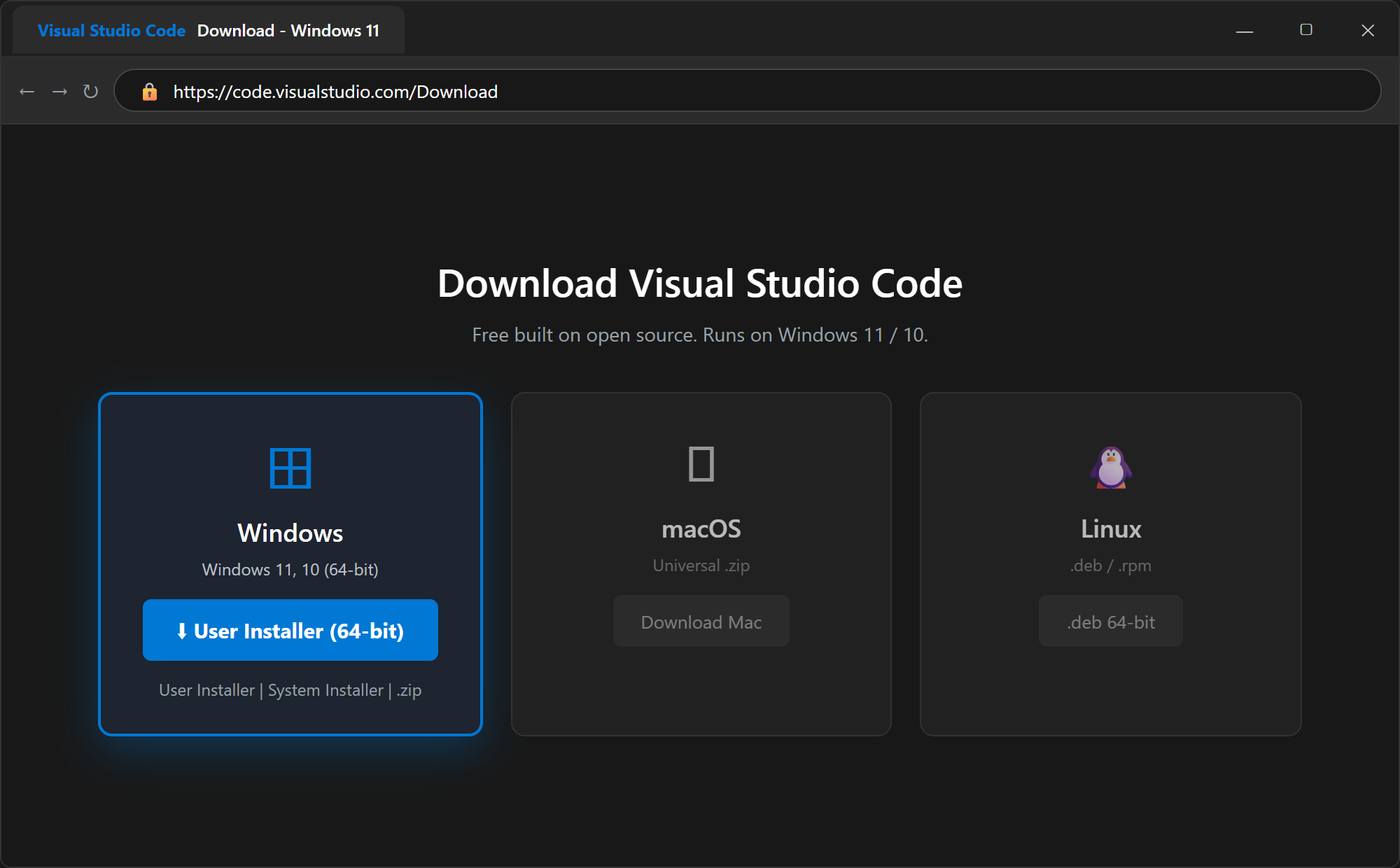
Open Google Chrome on your computer.Navigate to official Microsoft download portal.Official URL is https://code.visualstudio.com/Download.Download page displays all platform installers.Select Windows 11 64-bit installer option.
Step 2: Download the Official Windows 11 User Installer
Click blue Windows 64-bit User Installer button.Download begins for VSCodeUserSetup-x64.exe installer package.Total download size is approximately 98 megabytes.File saves automatically in Downloads folder.Verify download completes before launching installer.
Step 3: Open Downloads Folder in Windows 11
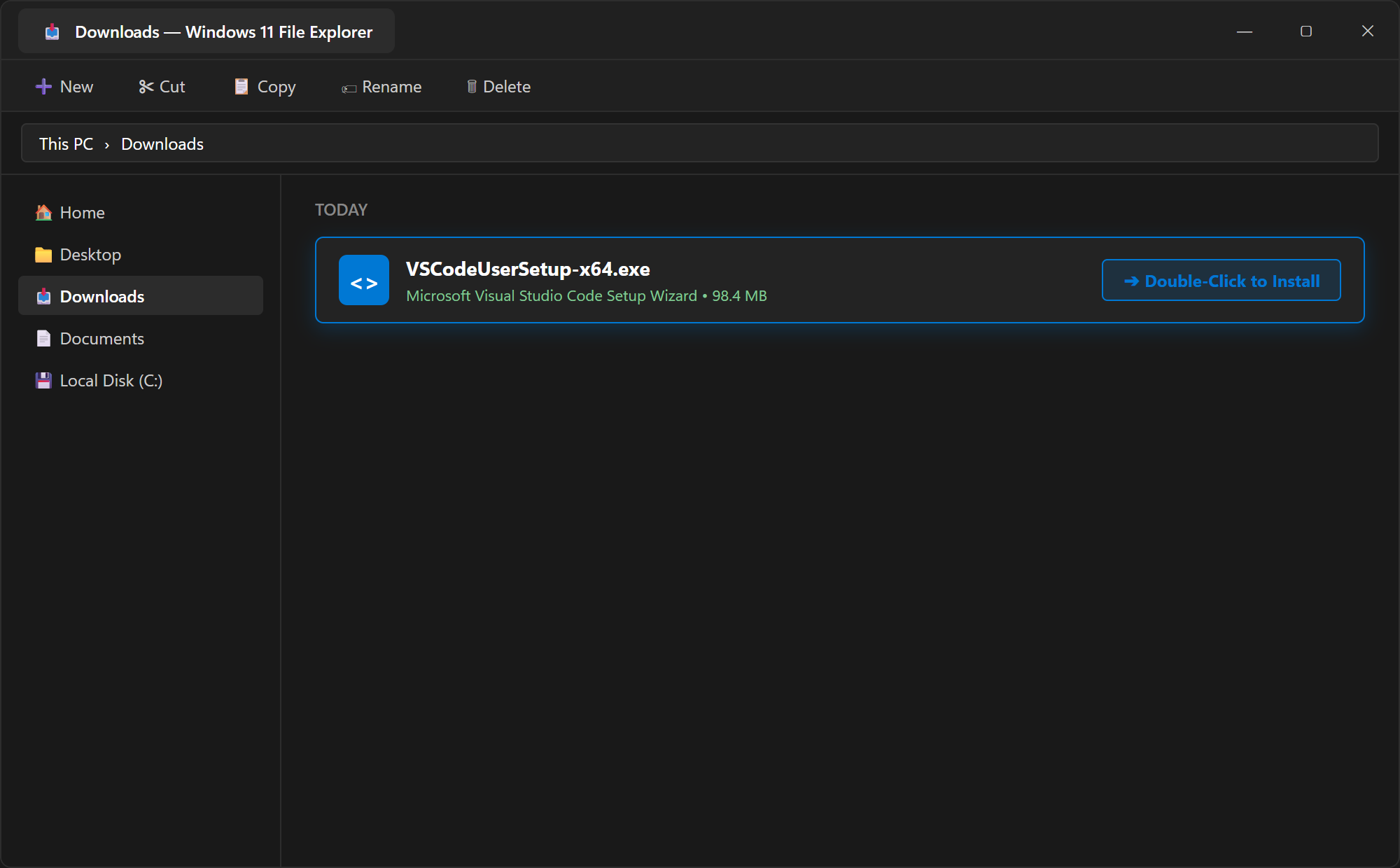
Press Win + E for File Explorer.Navigate directly to your Downloads folder.Locate downloaded installer named VSCodeUserSetup-x64.exe file.Double-click file to launch Microsoft Setup Wizard.Click Yes when User Account Control appears.
Step 4: Installation Wizard & Crucial Windows Checkboxes
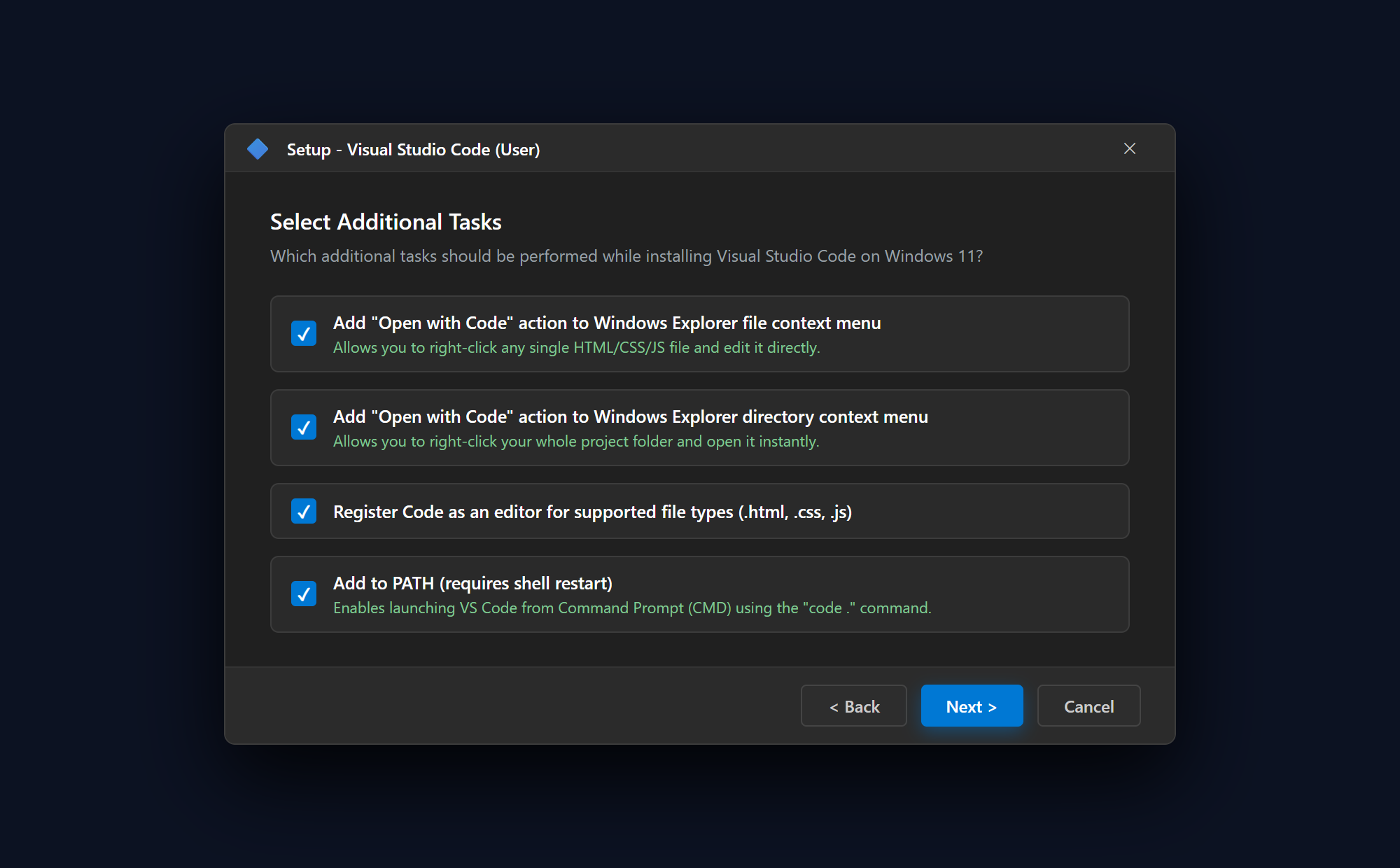
Accept Microsoft software license agreement prompt.Check "Open with Code" file context menu.Check "Open with Code" directory context menu.Check "Register Code as supported file editor".Check "Add to PATH" environment variable checkbox.Click Install to complete Windows 11 setup.
Step 5: Install Essential Web Developer Extensions
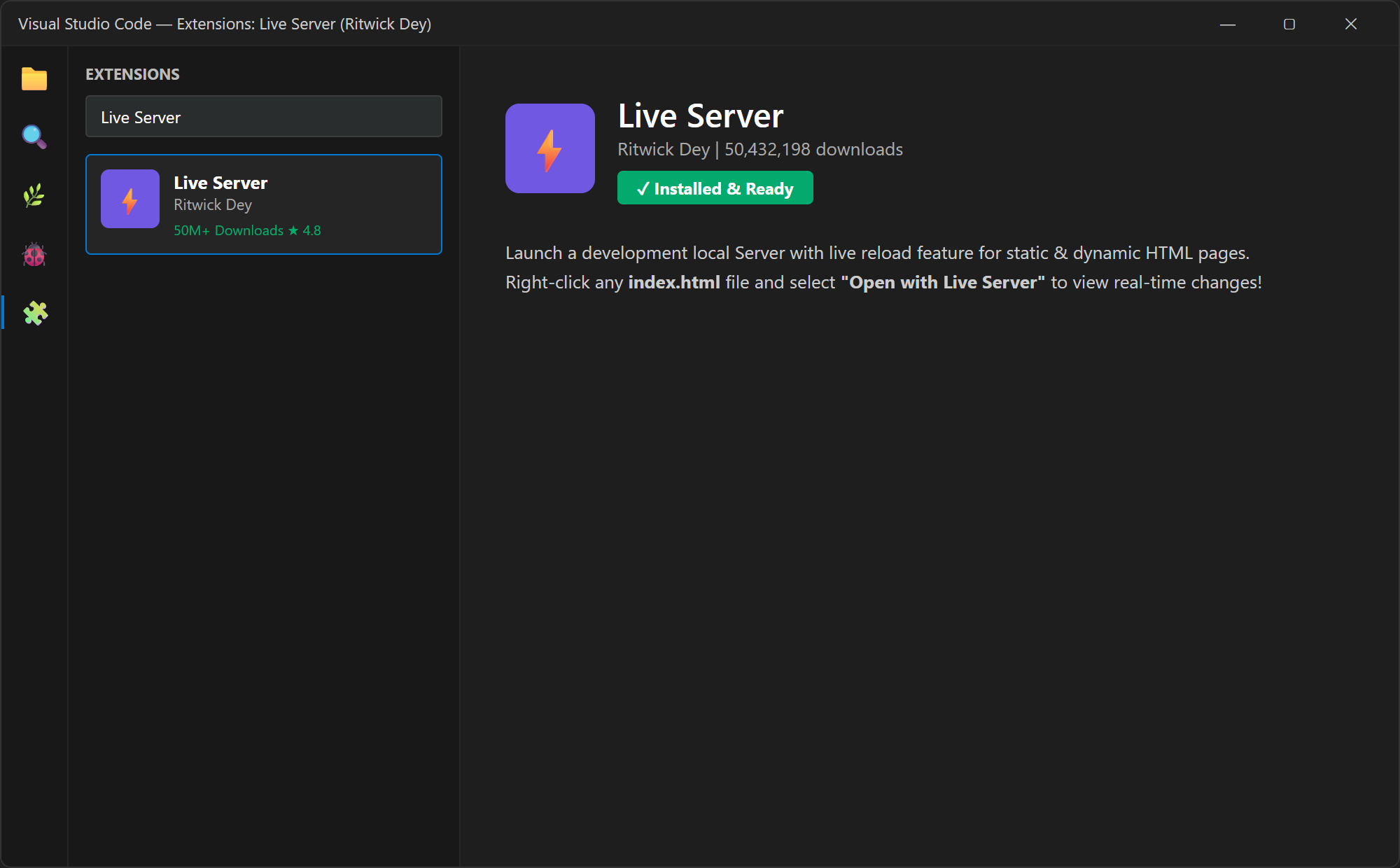
Press Ctrl + Shift + X in editor.Install Live Server extension for Chrome preview.Install Prettier code formatter for clean syntax.Install Auto Rename Tag for faster editing.Extensions automatically activate inside your editor.
Step 6: Create Your Project Folder & "Open with Code"
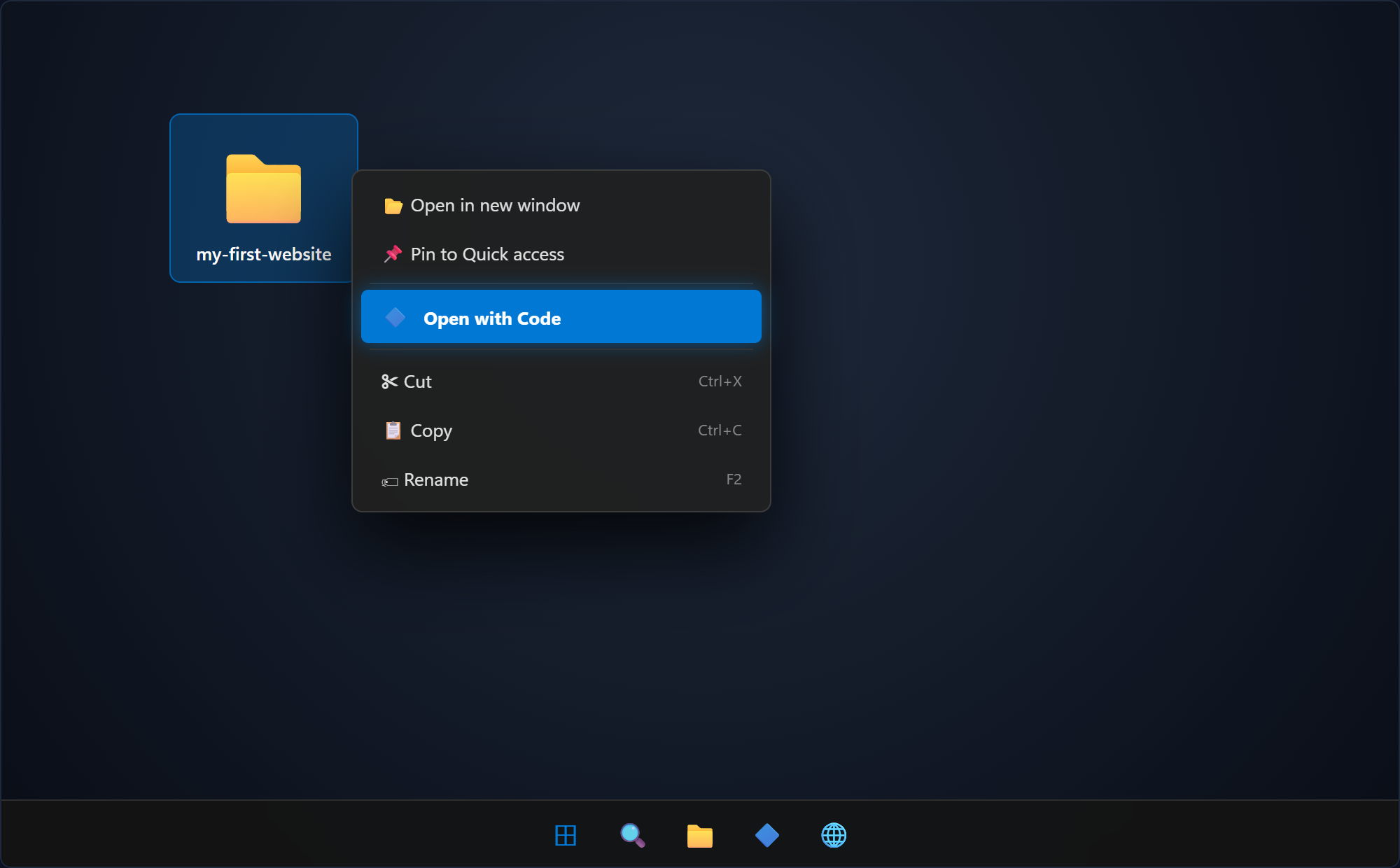
Create new folder named my-first-website on desktop.Right-click folder and select Show more options.Click "Open with Code" from context menu.Or run code dot inside Windows Terminal.VS Code loads workspace with active explorer.⊞Administrator: Windows 11 Command Prompt (cmd.exe)
⊞Windows 11 Execution OutputReal PC Match
Microsoft Windows [Version 10.0.22631.3007] (Windows 11 Pro x86_64)
(c) Microsoft Corporation. All rights reserved.
C:\Users\Student\my-first-website> code .
Opening current directory in Visual Studio Code... Workspace loaded!
Step 7: Create index.html & Run Google Chrome Live Server
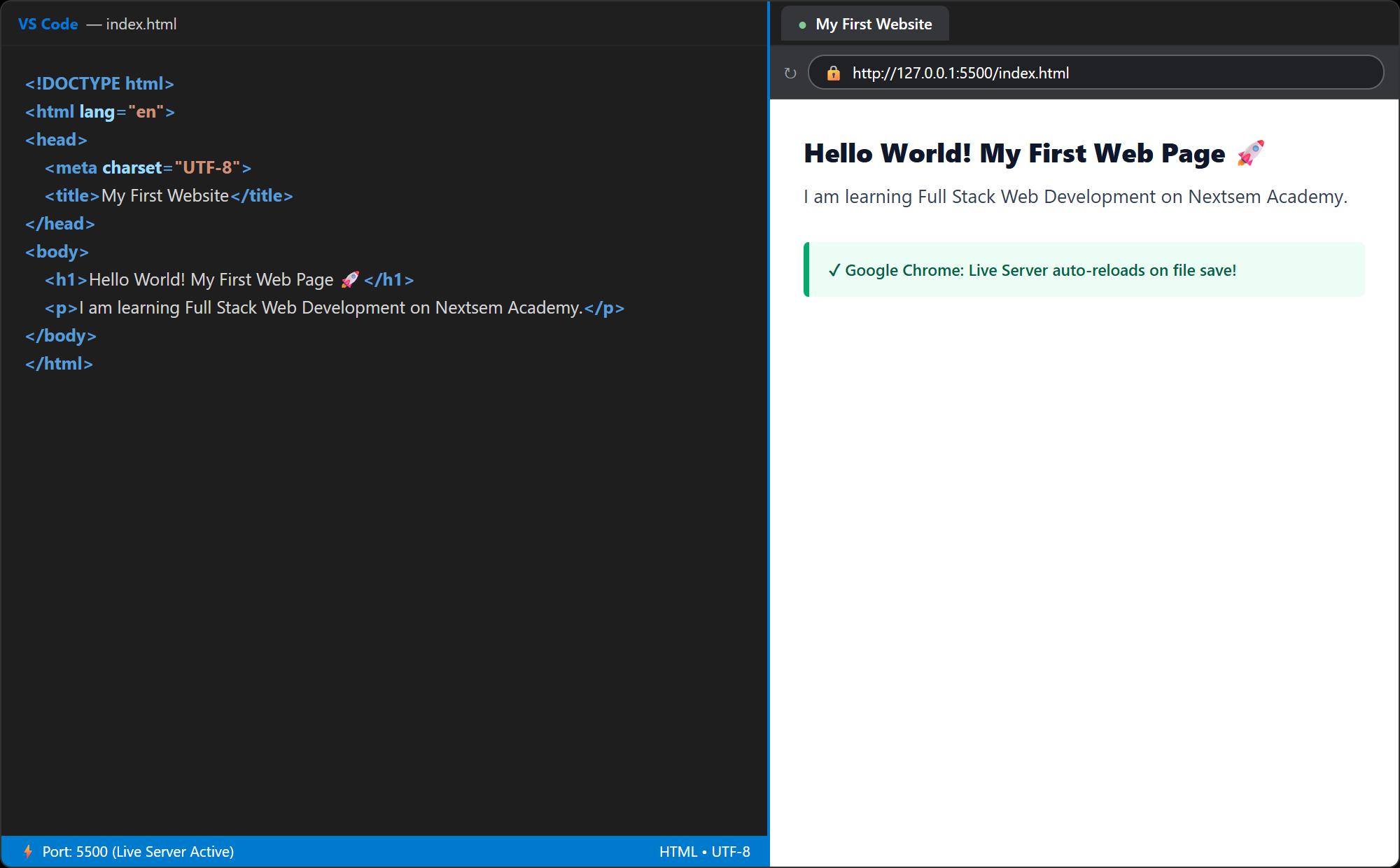
Create index.html inside the project explorer.Type exclamation mark and press Enter key.Emmet generates complete HTML5 boilerplate skeleton.Right-click index.html and select Live Server.Chrome opens page at localhost port 5500.5 <meta name="viewport" content="width=device-width, initial-scale=1.0">
6 <title>My First Website | Nextsem</title>
9 <h1>Hello World! My First Web Page</h1>
10 <p>I am learning Full Stack Web Development on Nextsem Academy.</p>
Essential Windows 11 VS Code Keyboard Shortcuts Drill
Ctrl + S saves the active file.Ctrl + ` toggles integrated developer terminal.Ctrl + Shift + P opens Command Palette.Alt + Up / Down moves lines.Alt + Shift + F formats code document.